

ToDo for Google Keyboard Shortcuts
ToDo for Google is an app for using Google Tasks on the Mac and Windows desktop. How useful a task manager is comes down to two things: whether you can capture a task the moment you think of it, and whether you can clear a backlog quickly. That is why everything can be done from the keyboard.
This article covers every keyboard shortcut in ToDo for Google, how to use and change the global shortcut that adds a task while you are working in another app, and the situations where each one actually helps.
Summary
Pressing the global shortcut (Command (Control) + Shift + A by default) opens an input window on top of whatever app you are using, so you can add a task without switching to ToDo for Google.
The global shortcut key can be changed freely in the settings. If it clashes with another app, you can reassign it to any combination you prefer.
Inside the app you can create, search, complete and schedule tasks entirely from the keyboard. A single number key sets the due date to today, tomorrow or a day further out.
Add a task from any app with the global shortcut
A global shortcut is a key combination that the operating system responds to even when the ToDo for Google window is not in front. By default it is Command (Control) + Shift + A.
Whether you are researching in a browser or writing code in an editor, pressing that key opens a task input window right where you are. There is no app to switch to and no need to leave what you were doing.
The cursor is already in the title field when the window opens, so you can start typing immediately. Press Add and the task is saved to Google Tasks, the window closes on its own, and you are back in your previous app.
The input window is not limited to the title. You can also set:
- New task: the task title. The cursor starts here when the window opens
- Add details: notes for the task. Multiple lines are supported
- Task list: which list to add to. It defaults to the list you had open last
- Priority: the priority of the task
- Due date: pick a due date from the calendar, along with a time and a repeat
The input window closes automatically as soon as it loses focus, for example when you click elsewhere. It never lingers on screen and gets in your way. Pressing the same key again also closes it.
Press Add before the window closes
The input window closes as soon as it loses focus, together with whatever you had typed. Anything unsaved is discarded, so press Add before you click away.
The global shortcut key can be changed freely
If Command (Control) + Shift + A clashes with another app, or you simply want a combination that is easier to reach, you can change it in the settings.
Open the settings and click the Global shortcut key field. It changes to "Press a key...". Press the combination you want and it is saved right there, ready to use from the next press.
The combination has to include at least one of Command (Control), Shift or Option (Alt). A bare key without a modifier cannot be assigned, because it would collide with ordinary typing.
Registration can fail if the operating system or another app already owns that combination. When that happens the key falls back to the default Command (Control) + Shift + A automatically. If a key you set does not open the window, try a different combination.
If you do not need the global shortcut at all, set Global shortcut to Disable in the settings. The key is unregistered and stops interfering with other apps.
Every keyboard shortcut in the app
These shortcuts work whenever the ToDo for Google window is open. The same list is available in the app under Keyboard shortcut.
| Action | Keys |
|---|---|
| Reload | Command (Control) + R |
| Create task | Command (Control) + N |
| Search tasks | Command (Control) + F |
| Task Completed/Incomplete | Space |
| Select previous, next task | ↑ / ↓ |
| Add due date (Today) | 1 |
| Add due date (Tomorrow) | 2 |
| Add due date (After tomorrow) | 3 - 9 |
| Delete due date | 0 |
| Create Task (Global Shortcut) | Command (Control) + Shift + A |
Use Command on the Mac and Control on Windows.
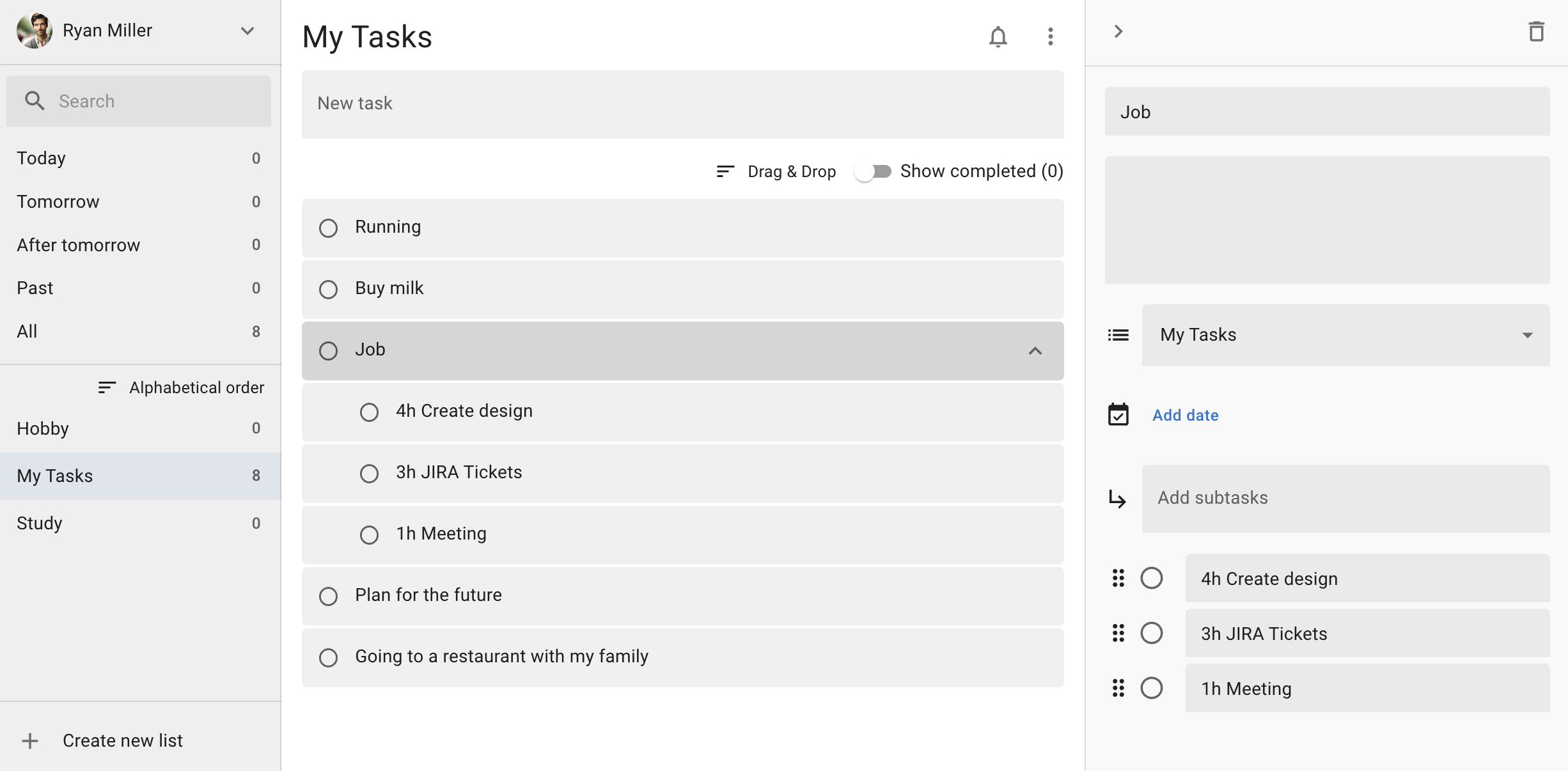
The number keys count the day you press them as day one: 1 is today, 2 is tomorrow, 3 is the day after, and so on up to 9 (eight days out). Pressing 0 removes a due date that is already set.
While you are typing, number keys and Space are entered as ordinary characters. Move the focus out of the text field before using them to set a due date or toggle completion.
Where it actually helps
Capture something you were asked for, mid-meeting
The "I will take care of that later" that comes up in a meeting can be logged on the spot, without switching apps. Press the global shortcut, type the title, add it: a few seconds. No more jotting it in a notes app and copying it into a task list afterwards.
Turn something you found in the browser into a task
When an article or tool catches your eye mid-research, keep it as a task instead of leaving the tab open. Paste the URL into the details field and opening the task takes you back to it. It keeps tabs from piling up until you no longer remember what you were looking at.
Clear a backlog without leaving the keyboard
Select a task with the arrow keys, complete it with Space, reschedule it with a number key: the whole pass runs without pausing. Pushing what will not get done today to tomorrow is one key, 2, per task. No reaching for the mouse, opening a calendar and clicking a date.
Find the task when you cannot remember which list it is in
Command (Control) + F jumps straight to the search field. Search in ToDo for Google runs across every task list, so a task you cannot place still turns up.
What to know before you rely on it
The global shortcut only works while ToDo for Google is running. It works with the window behind other apps or while you are using something else full screen, but not once the app has quit.
The global shortcut is also a desktop app feature. It is not available in a browser, or when the web version is installed as a PWA, because a web page cannot register a key that responds outside the browser.
A combination can collide with one the operating system or another background app already uses. If pressing it does nothing, change it to a different combination in the settings.
Frequently asked questions
What is the default global shortcut key?
Command + Shift + A on the Mac and Control + Shift + A on Windows. You can change it at any time in the settings.
Can I change the shortcut to a combination of my own?
Yes. Click the Global shortcut key field in the settings and, once it reads "Press a key...", press the combination you want. It has to include at least one of Command (Control), Shift or Option (Alt).
Nothing happens when I press the shortcut.
First check that the app is running. If it is and the key still does nothing, the operating system or another app is probably already using that combination; changing it in the settings resolves it. Also check that Global shortcut is not set to Disable.
Can I turn the global shortcut off?
Set Global shortcut to Disable in the settings. The key is unregistered and stops interfering with other apps.
Do the same shortcuts work in a browser or a PWA?
The global shortcut is a desktop app feature only. A web page cannot register a key that responds outside the browser, so it is unavailable even when the web version is installed as a PWA.
Try ToDo for Google
There is a 7-day free trial, so you can see how the global shortcut and keyboard workflow feel before deciding.